 tyde
tydeUse Tyde on your phone
Pair your phone with a host, continue the same agent conversations, start chats, resume sessions, and manage notifications.
What the mobile app connects to
Tyde mobile is a web app that connects to the Tyde host running on your computer or server. Its Agents list shows agents on that host, including conversations you opened on desktop. Open an existing agent to continue that conversation; you do not need to start another agent on the phone.
The host runs the CLI harnesses and holds the project files and sessions. Your phone displays the conversation and sends your actions to the host. Keep the host running, awake, and reachable. Closing the phone app does not shut down agents on the host.
Pair through the cloud
- In desktop Tyde, open Settings → Mobile. Check the host selector: choose the computer or server whose agents you want on your phone.
- Turn on Enable mobile connections, then choose Pair via cloud. Tyde displays a pairing QR and its expiry.
- On your phone, open Tyde mobile and choose the QR scanning control. Allow camera access when prompted and scan the QR on your desktop.
- If scanning is unavailable, expand Show pairing URI on desktop and paste it into the phone’s pairing-code field. Choose Connect. If Tyde displays Show pairing link instead, open that link on your phone.
- Complete the phone’s Tyggs sign-in and Pass flow. Managed cloud pairing requires a Tyggs Pass.
- Complete the pairing prompts, then wait for the host to show as connected on the phone. Open Agents to find your conversations.
A pairing offer expires after a short time. If it expires, create a new one on desktop. Pairing links and codes grant access to the selected host; keep them private.
Add the web app to your Home Screen
You can open Tyde mobile in a browser or add it to your phone’s Home Screen using the browser’s installation or sharing controls. Open the installed app and complete pairing there if it asks you to connect again. On iPhone, use the Home Screen app to enable notifications.
Continue a desktop conversation
- Select the paired host that owns the conversation.
- Open Agents and tap the agent’s name. Wait for its conversation to load.
- Read the transcript. Expand tool cards when you need to inspect what the agent ran and its result. The header shows the agent’s current status.
- Type in the composer and choose Send for a follow-up. When a turn is already running, check the send-action controls: a message can be queued rather than sent as a new idle turn.
- Use Stop to interrupt a running turn, or answer a question through the controls shown in the conversation.
- Tap Agents in the header to return to the list. Switching conversations does not stop other agents.
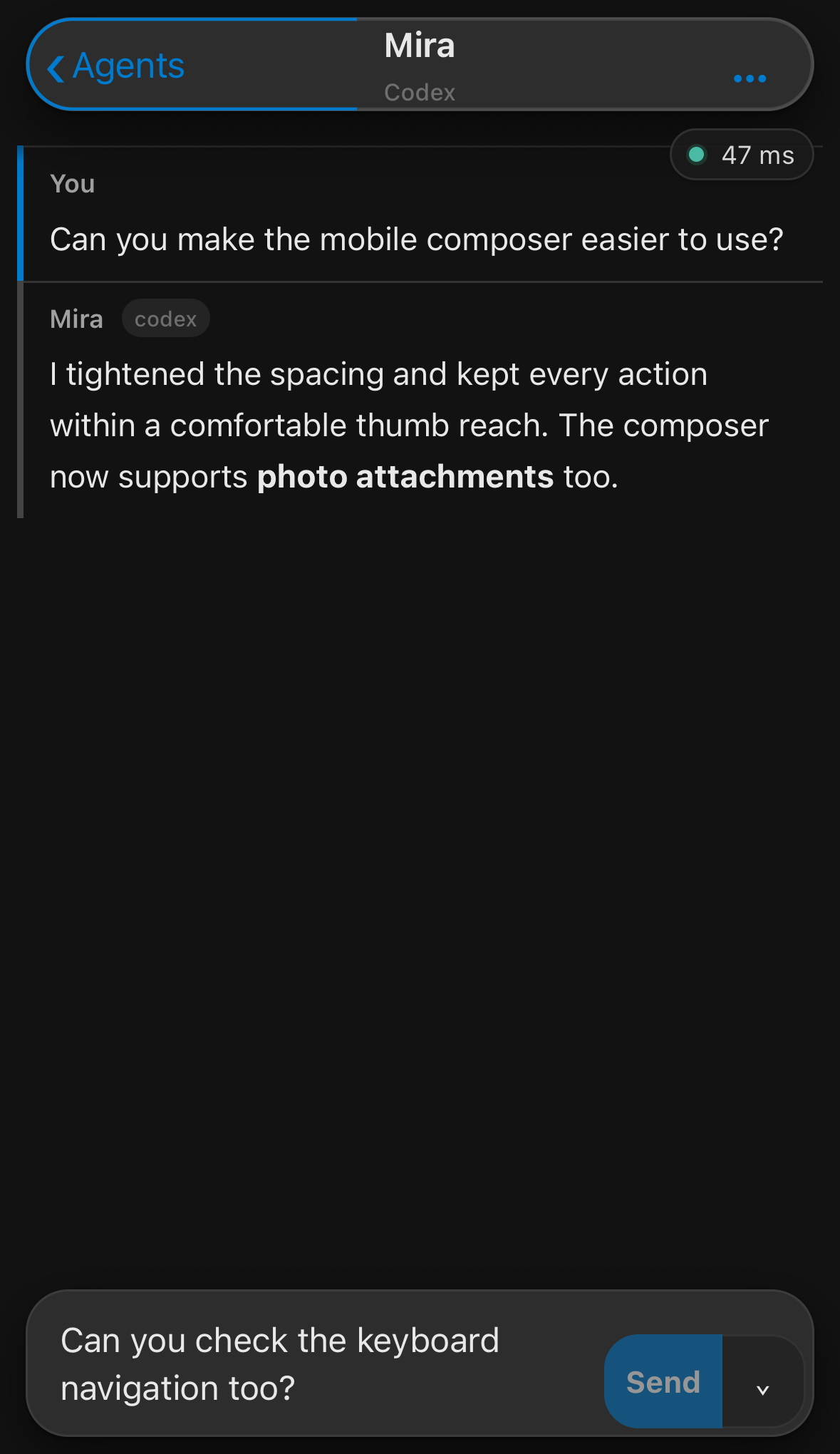
The composer also supports photo attachments when the selected harness supports image input. Use the attachment control, inspect the attached images, and send them with your message. Voice controls depend on voice being configured on the host; ordinary text chat does not require voice setup.
Find chats and saved sessions
| Tab | What you do there |
|---|---|
| Home | Check the selected host and connection overview. |
| Agents | Open an agent, choose New chat, or switch to Swarms for shared Briefing and Coordination conversations. |
| Sessions | Find a saved conversation and choose Resume. Load older sessions when the conversation is not in the first page. |
| Settings | Choose the theme and tool-output display, manage notifications, and inspect the selected host’s configuration. |
To start work from mobile, choose New chat in Agents, select an available harness and agent configuration, and send the first request. The new agent runs on the selected host and appears on desktop too. Any workspace folders you select belong to that host’s filesystem.
To resume earlier work, use Sessions → Resume, read the restored conversation, and then send your next instruction. Desktop calls its saved-session view History; mobile calls it Sessions.
Enable agent notifications
- Open Settings → Notifications on the phone. On iPhone, launch Tyde from its Home Screen icon first.
- Choose Enable notifications and allow the browser’s permission request.
- Check that Agent idle alerts shows On. If permission is already granted but the device is not subscribed, choose Turn on.
- Use Turn off in the same section when you no longer want alerts.
Alerts notify you when an agent finishes a turn or asks you something. If the browser reports notifications as blocked, change that site’s notification permission in browser settings. If it reports them as unavailable, follow the displayed instructions for your browser.
Reconnect and recover a message
When you return to the phone app, check the host’s connection state before sending more work. A disconnected phone does not prove that an agent stopped: reconnect to the original host and inspect the existing conversation.
If Tyde displays a message-recovery control after a connection failure, read its status before resending. A message whose delivery is uncertain may already have reached the host. Check the conversation first; use the offered recovery action deliberately rather than repeatedly tapping Send.
If your agents or sessions seem missing, check the selected host. Pair each additional computer or server separately. Files and conversations remain with the host where they were created.
Connect through your own network
Direct hosting serves the mobile web app from your own host instead of using managed cloud pairing. The phone must be able to reach the host’s address, for example on your network or VPN.
- On desktop, open Settings → Mobile for the target host and enable mobile connections.
- Turn on Host the mobile app from this machine.
- Configure the listening address and an HTTPS proxy for the host, then set Address phones use to the HTTPS address the phone can reach. The host serves HTTP behind the proxy; the phone needs the HTTPS address for browser features.
- Wait for the direct-hosting status to report that it is serving. Released hosts include the mobile web app automatically; there is no bundle to select.
- Choose Pair via local server, open its pairing link or scan the QR on the phone, and complete the direct-pairing flow.
The cloud flow’s Tyggs Pass sign-in is separate from direct pairing. Use the local-server pairing control for direct access, and make sure the phone can reach that address when away from your desk.
Remove a phone’s access
In desktop Settings → Mobile, find the phone under Paired devices, choose Remove, and confirm. That phone needs a new pairing before connecting again. To stop all mobile access to the selected host, turn off Enable mobile connections.